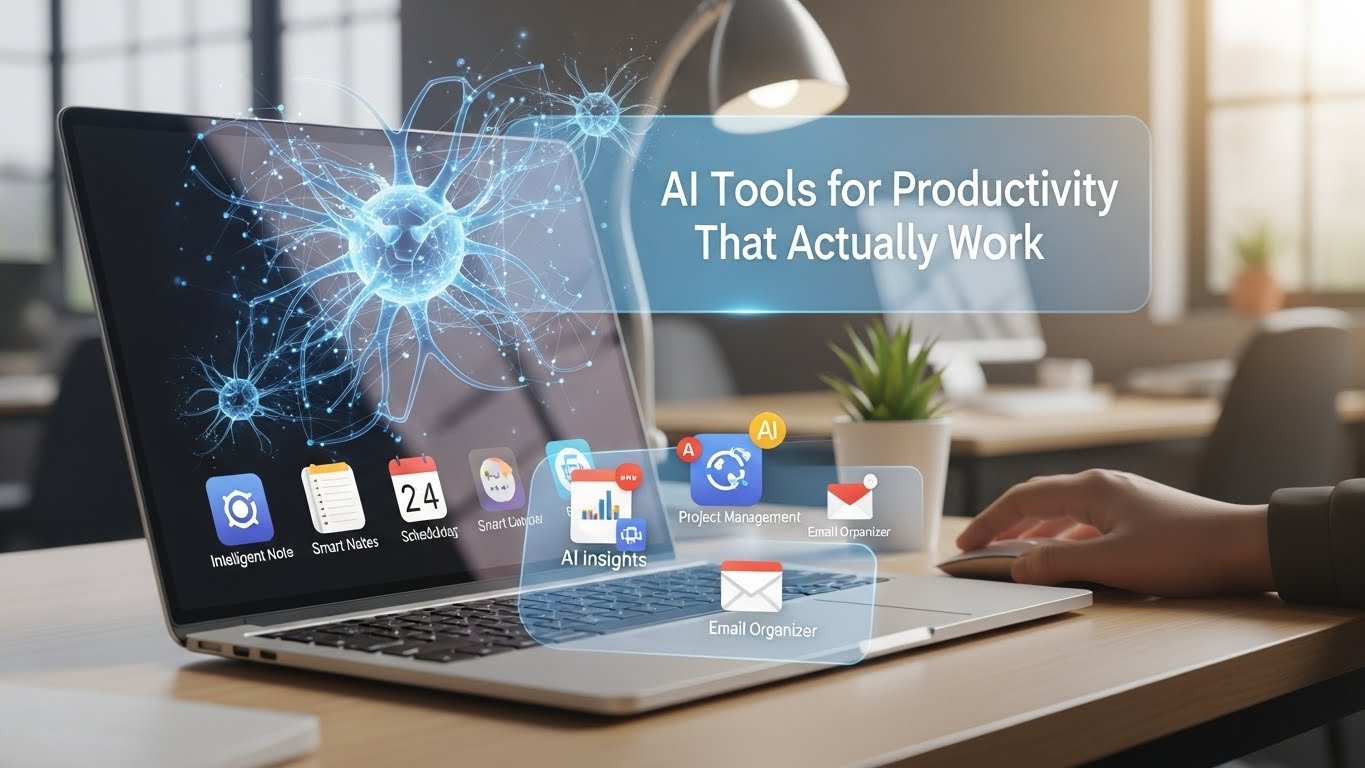
A few years ago, “getting productive” meant hunting for the perfect to-do app, color-coding your calendar, and trying not to drown in notifications. Now the conversation is more practical: AI tools for productivity can remove the friction around work itself, writing, summarizing, searching, scheduling, and moving information from one place to another.
But the truth I keep seeing (especially in busy teams) is that AI only boosts productivity when it’s applied to repeatable tasks. If you add three new tools, change your whole workflow, and expect magic, you’ll mostly get more settings to manage.
If you pick one painful bottleneck and use AI to reduce the steps, the impact is immediate.Below is a grounded, real-world guide to the productivity AI tools that tend to deliver, plus a few watch-outs so you don’t trade speed for mistakes.
What AI is genuinely good at in day-to-day work

Think of AI like a fast assistant: great at first drafts and organization, not a final authority. In everyday knowledge work, it’s especially strong for:
- Drafting and rewriting: emails, proposals, follow-ups, customer replies
- Summarizing: meetings, long documents, Slack/Teams threads
- Searching across scattered info: notes, docs, knowledge bases
- Turning messy notes into structure: outlines, checklists, project plans
- Automation: routing requests, extracting fields, creating tasks
- Scheduling help: protecting focus time, reorganizing calendars
Where it still struggles: perfect accuracy, high-stakes nuance (HR, legal, medical), and any situation where tone and context matter more than speed.
The AI productivity tool categories that actually move the needle
1) AI writing assistants (for faster, better communication)
If your job involves lots of writing internal updates, client emails, and proposals, this is often the quickest win.
- Grammarly and LanguageTool improve clarity and tone.
- Microsoft Copilot (Microsoft 365) can draft in Word, summarize Outlook threads, and help outline PowerPoint decks.
- Google Gemini for Workspace offers similar help inside Gmail and Docs.
- Notion AI is useful for turning rough notes into clean internal documentation.
Where it saves time: repetitive writing and “staring at the blank page” moments.
Watch out: generic tone. AI-written text can sound polished but empty. The fix is simple: add specifics (numbers, names, decisions) and trim fluff.
2) Meeting transcription + action items (the easiest reclaimed hours)
Meetings don’t just consume time, they create follow-up work. The biggest productivity loss is when decisions and action items aren’t captured cleanly, so teams rehash conversations later. Tools like Otter.ai, Fireflies.ai, and Zoom AI Companion can transcribe calls, generate summaries, and pull out action items. In practice, this reduces the need for one person to play scribe and makes it easier to confirm what was agreed.
A realistic team example: a weekly project sync where the notes used to take 20–30 minutes to polish and distribute. With transcription plus a quick human review, that drops to about 5–10 minutes, and tasks are less likely to slip through the cracks. Best practice: have a human confirm owners and deadlines. AI can mis-attribute tasks when people interrupt or use vague language (“someone should…”).
3) AI scheduling and task planning (because your calendar is the constraint)
To-do lists fail when they ignore how little uninterrupted time you actually have. Tools such as Motion and Reclaim.ai auto-schedule tasks into available blocks and protect focus time. Project platforms like Asana and ClickUp also offer AI features that summarize projects and suggest next steps.
Where it helps most: people with meeting-heavy days, managers, consultants, founders, and team leads. Watch out: unrealistic time estimates. If you consistently guess wrong, the tool will reshuffle your day endlessly. You get the best results when you regularly calibrate how long common tasks truly take.
4) AI research and “answer engines” (faster orientation)
A hidden productivity drain is getting oriented: reading background material, comparing options, and collecting context. Research assistants like Perplexity can provide quick summaries with links so you can build an initial understanding faster.
The productivity win: you start with a structured overview instead of a pile of tabs.
The risk: trusting the summary too much. For anything important, policy, compliance, and budgets verify with primary sources.
5) AI automation platforms (turn busywork into background work)
If your workflow includes copying data from email to a sheet, then into a CRM, then into a task board, automation is where AI pays off long-term.
Platforms like Zapier and Make can categorize text, extract key fields, and route requests automatically. One common setup: an inbound request gets tagged by topic/urgency, a task is created from a template, it’s assigned to the right person, and an acknowledgment is sent, all with minimal manual handling.Ethical note: automate the repetitive steps, not responsibility. A human should still own outcomes and quality.
How to adopt AI tools without creating more chaos

Instead of building an “AI stack” overnight, pick one workflow that annoys you every week and improve it end-to-end:
- Capture (meetings, inbox, requests)
- Clarify (summarize, extract tasks, assign owners)
- Execute (schedule focus time, draft responses)
- Review (weekly check: what moved, what stalled, what to drop)
Measure success with simple signals: fewer follow-ups, fewer missed tasks, faster turnaround, and less after-hours catch-up.
FAQs
What are the best AI tools for productivity right now?
Copilot or Gemini for docs/email, Otter or Fireflies for meetings, Motion or Reclaim for scheduling, and Zapier or Make for automation.
Do AI productivity tools really save time?
Yes, especially for writing, summarizing, and admin work when applied to repeatable tasks.
Are AI meeting summaries reliable?
Generally, but not perfectly. Always confirm action items, names, and deadlines.
How do I choose the right AI tool?
Start with your biggest bottleneck (email, meetings, scheduling, handoffs) and choose one tool that solves that specific workflow.
Is it safe to use AI tools at work?
It depends on data policies and tool settings. Avoid sharing sensitive information unless you have clear organizational approval and appropriate privacy controls.

Related Posts