Last month, I stared at my laptop screen at 9 PM, staring down 47 client performance PDFs, each ranging from 5 to 12 pages long. For the past three hours, I’d been copying and pasting KPIs into a master spreadsheet, squinting at scanned tables that wouldn’t let me select text, and retyping sections where the original file was locked.
I’d relied on the free Adobe Acrobat tool for years, but that night, I finally admitted I was wasting hours that could be spent analyzing data instead of wrangling documents.
As a freelance operations consultant with seven years of streamlining document workflows for small businesses and solopreneurs, I’ve tested nearly every PDF tool on the market, from clunky legacy software to the latest AI-powered platforms.
The best tools aren’t just about merging or splitting files anymore; they’re about turning static PDFs into actionable, editable data without the busywork. Below are my top recommendations, tailored to real-world needs:
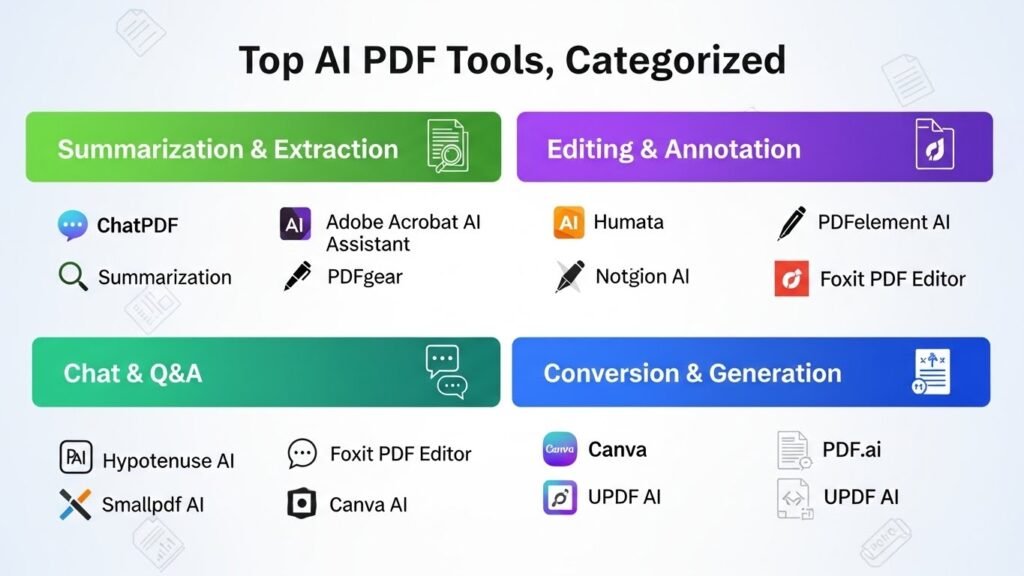
Top AI PDF Tools, Categorized
1. All-in-One Workhorse: Adobe Acrobat Pro with Smart Assistant
This is my go-to for high-stakes, high-volume projects. For that 47-report audit, the AI auto-summarized each report’s key takeaways in two clear sentences per file, pulled all regional KPIs into a linked spreadsheet, and even flagged duplicate data points I’d missed. The integrated AI means you never have to switch between platforms to edit, summarize, or redact files.
The downside? At $23 per month, it’s a steep cost for solopreneurs who only use PDF tools a few times a month. I only recommend this for teams or freelancers who process 20+ PDFs weekly.
2. Budget-Friendly Powerhouse: PDFgear
Over the past quarter, PDFgear has become my go-to recommendation for cash-strapped solopreneurs. A freelance writer client of mine was stuck redacting personal client info from 20 old proposal PDFs, a task she estimated would take 3 hours. PDFgear’s AI auto-detected every name, email, and phone number in under two minutes, and the free version lets her save all redacted files without a watermark.
The catch: the free tier has a 10-daily PDF upload limit, so it’s not ideal for bulk processing. For occasional use, though, it’s unbeatable.
3. Collaboration-Focused: Foxit PDF Editor
When multiple team members are working on a single PDF, Foxit’s AI features are unmatched. Last month, my small grant-writing team used it to refine a 100-page proposal for a local non-profit. The AI suggested consistent formatting across all sections, auto-translated our executive summary into Spanish for our international partner, and even flagged gaps where we hadn’t addressed the grant’s specific requirements.
The only limitation is that it struggles with low-quality scanned PDFs; it works best with editable text files.
4. Legacy Scanned PDF Specialist: Soda PDF
For teams dealing with decades-old scanned PDFs that are completely uneditable, Soda PDF’s AI-powered OCR is the best I’ve tested. A local manufacturing client had 30 years of scanned sales reports stored as static PDFs, and they needed to compile annual sales data for a tax audit. Soda’s AI not only converted the scanned text into editable files but also categorized the data by product line automatically, saving us over 10 hours of manual data entry.
Just note that it’s not perfect with messy handwritten notes; we still had to clean up a few sections where the sales team had jotted down quick, illegible notes.
Critical Ethical and Privacy Note

Last year, a client made the mistake of uploading a confidential employee contract to a random free PDF tool, and a week later, they received a phishing email referencing specific details from that document. Always read a tool’s privacy policy before uploading sensitive files: look for end-to-end encryption, clear data retention policies, and avoid free tools for legal, medical, or confidential business documents. Many free tools retain user data for training purposes, which is rarely disclosed upfront.
At the end of the day, there’s no one “perfect” AI PDF tool. The best choice depends on your budget, how many files you process, and how sensitive your data is. I always tell clients to test the free trial first, rather than committing to a yearly subscription sight unseen.
FAQs
- What’s the best free AI PDF tool for occasional use?
PDFgear offers robust free AI features with reasonable daily limits, perfect for casual users or solopreneurs. - Can AI PDF tools handle handwritten scanned PDFs?
Most struggle with messy handwriting. Soda PDF has the most advanced OCR for this use case, but expect minor manual cleanup. - Are AI PDF tools safe for sensitive documents?
Stick to paid tools with documented end-to-end encryption. Avoid free tools for confidential legal, medical, or business files. - Do I need technical skills to use these tools?
No nearly all modern AI PDF tools have intuitive drag-and-drop interfaces and guided prompts for their AI features.

Related Posts